Client Portal
The client portal allows clients to access their information, schedule appointments, view documents, and communicate with your practice.
- Client Portal
Create an account on the client portal
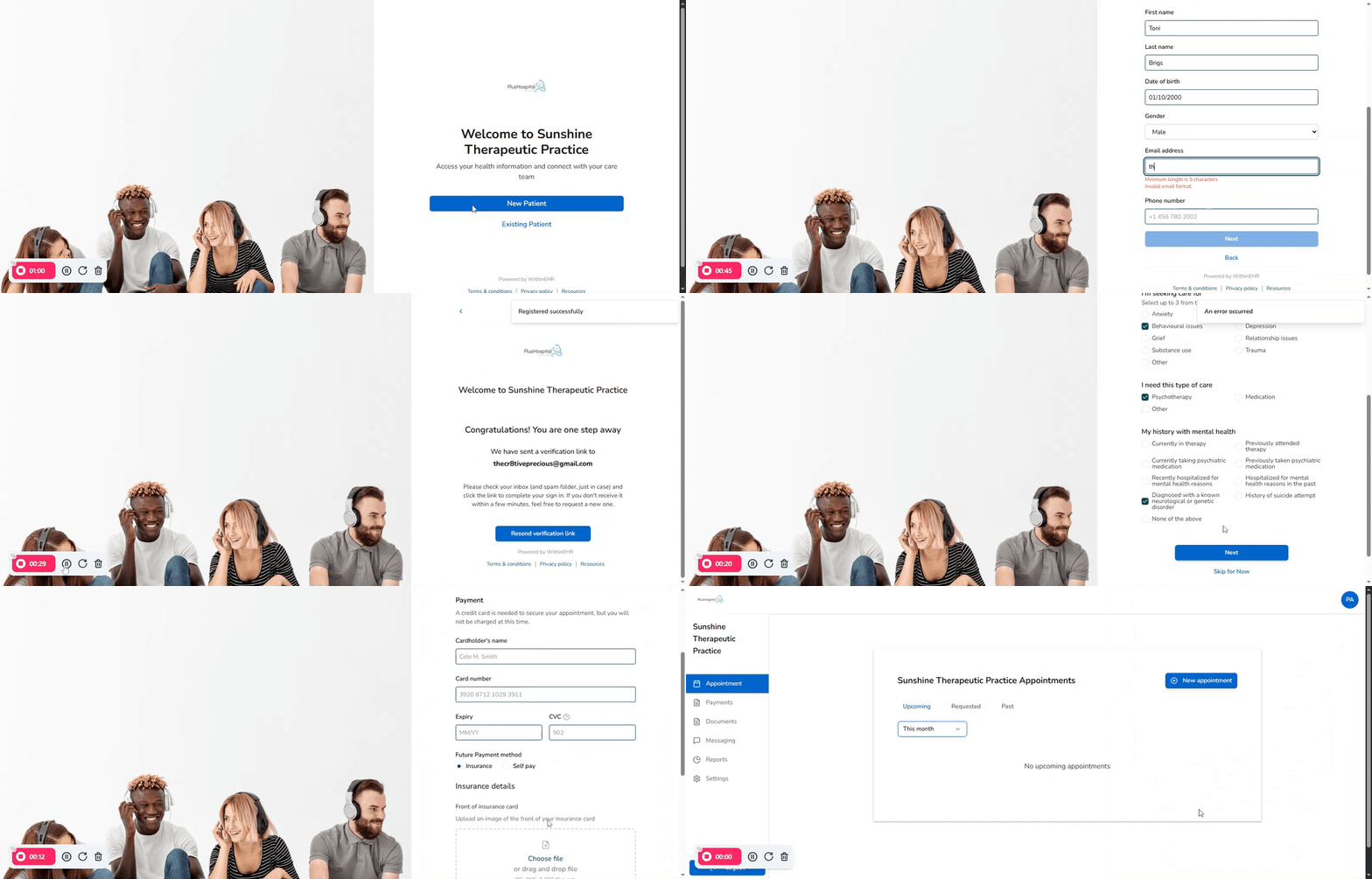
The Patient Portal is your secure, private gateway to manage healthcare interactions with our practice; creating an account is the essential first step for your patient to access your health information, communicate with your care team, and manage appointments online. An account grants your patient secure, instant access to key features that streamline your entire healthcare experience.
Your clients can use Secure Messaging to communicate privately with your care team, avoiding insecure email or phone tag. Furthermore, the portal enables your clients to Manage Appointments by easily requesting, scheduling, or viewing details for upcoming visits, reducing administrative work.
Steps to Create Your client Portal Account
- You will receive an invitation to create your account via email after your first interaction with the practice or you can get the link through the practice website.
- You will be directed to a page that ask if you are a “New patient” or ‘Existing patient”. Select “New patient”
- Fill in the basic information (e.g., First name, Last name, DOB, Email, etc..).
- You will be sent a verification link on the registered mail address. While clicking on they link, they will be redirected to complete their registration.
- You will be directed to fill the following; medical history, appointment scheduling, payment.
- After filling the necessary information, Select “Complete Registration”.
- Then you will be directed to their patient portal
Book an appointment through the patient portal.
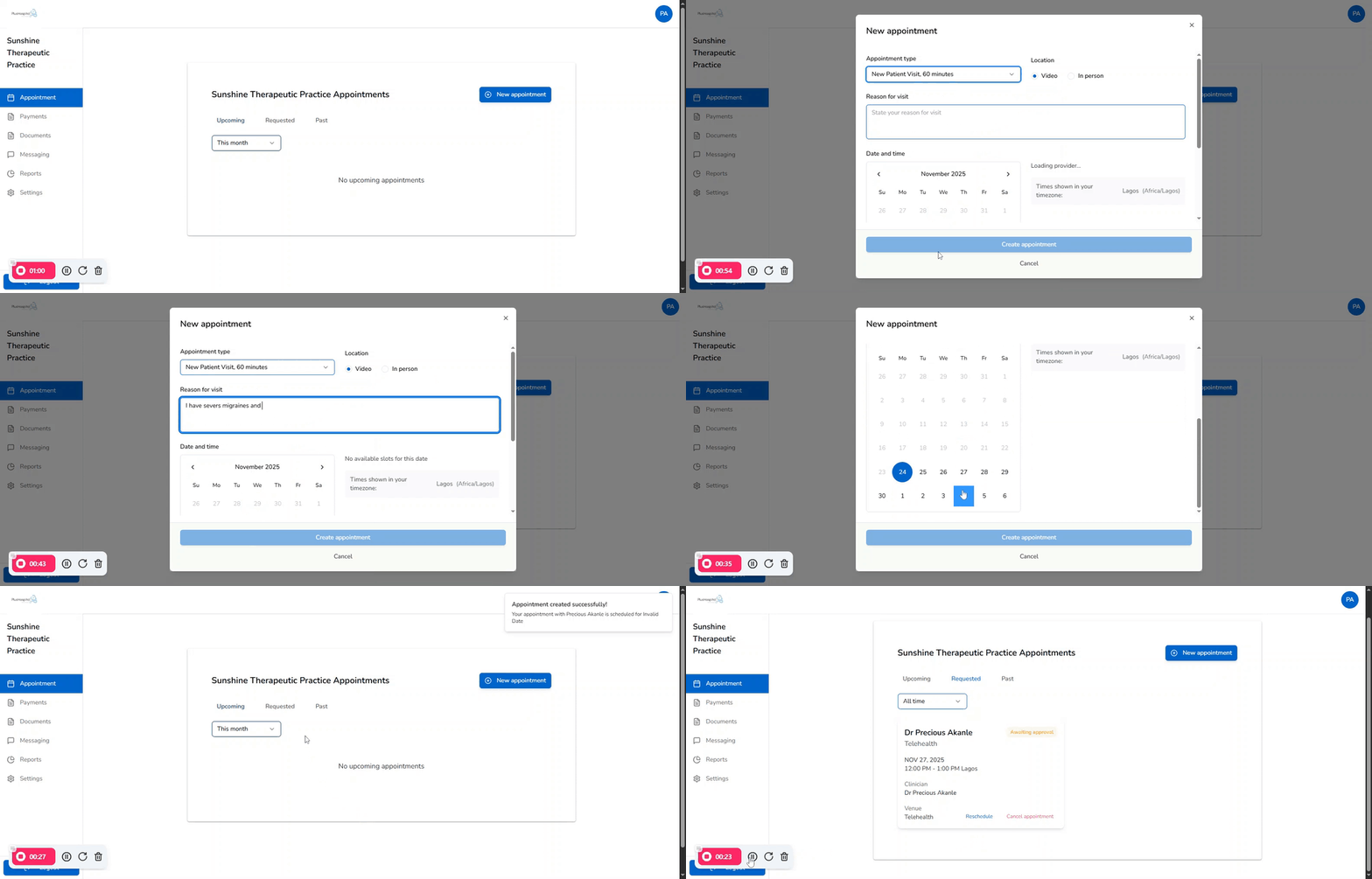
The client Portal gives you control over scheduling, allowing you to choose your preferred appointment time instantly without picking up the phone. Scheduling through the Patient Portal is fast, convenient, and accurate, offering 24/7 access so you can book appointments anytime, day or night, at your convenience. You can view your clinician's current openings based on your needs (e.g., check-up, consultation, follow-up) and get immediate booking confirmation with automated reminders.
Steps to Book Your Appointment
- Log into the Patient Portal and click the "Appointments" or "Schedule a Visit" tab.
- Choose the Type of Service you need (e.g., Annual Physical, Follow-up, Sick Visit).
- Confirm the Location (e.g., In-Office, Telehealth).
- Enter your Reason for Visit
- Select the Date and Time that works best for you.
- Click “Create appointment”
Updating Client Portal Greeting message
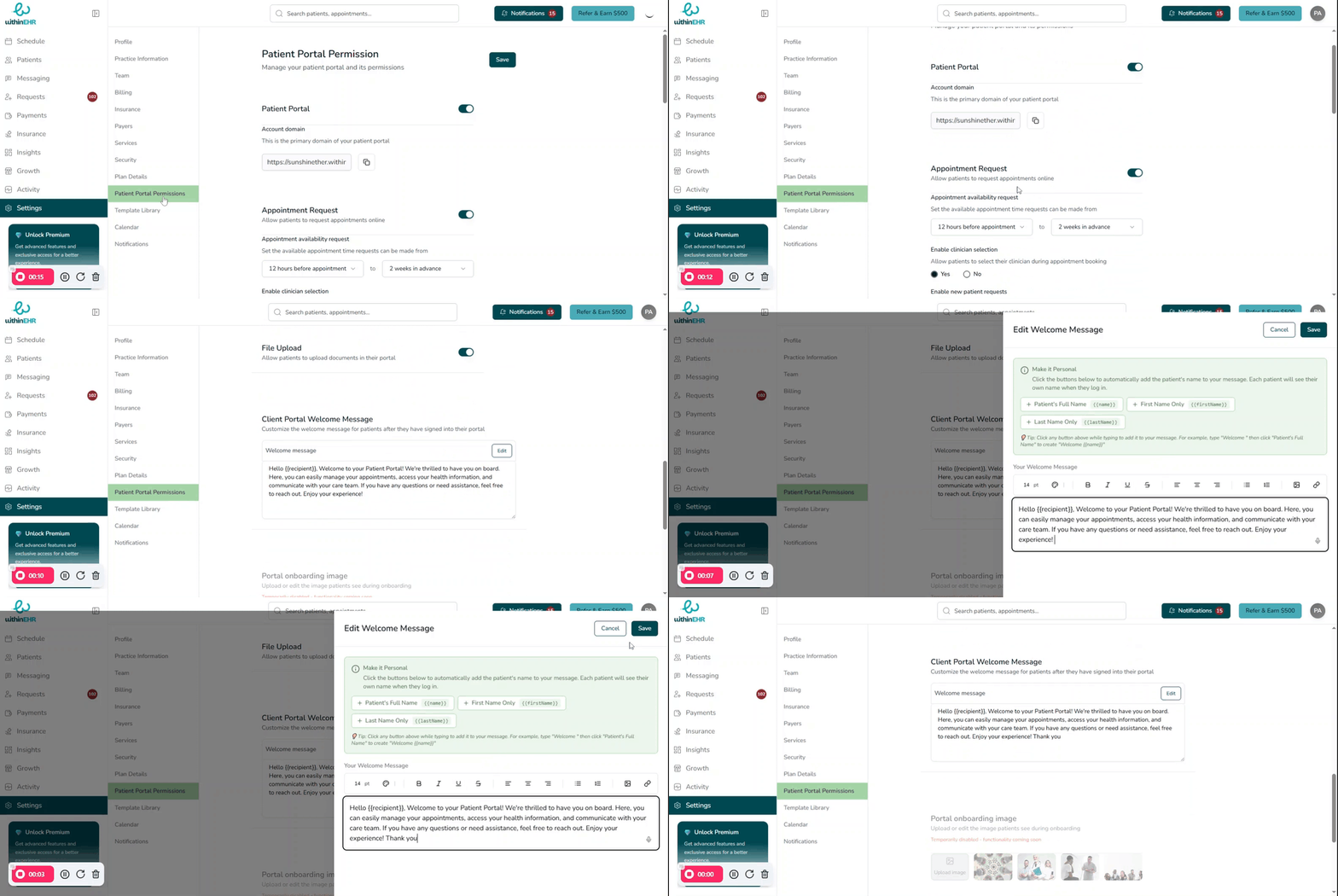
The Client Portal Greeting Message is the first text your clients see immediately after they log into their secure portal dashboard. This function allows administrative staff to update this message to provide timely information, friendly welcoming notes, and crucial reminders.
- Access Settings: Navigate to the "Patient Portal Permissions" within your EHR's administrative dashboard.
- Locate Field: Find the field labeled "Client Portal Welcome Message".
- Draft and Edit: Enter your new text. Keep it concise.
- Save and Publish: Click "Save" or "Apply Changes." The new greeting message will instantly replace the old one for all active clients upon their next login.
What are macros and how do I use them?
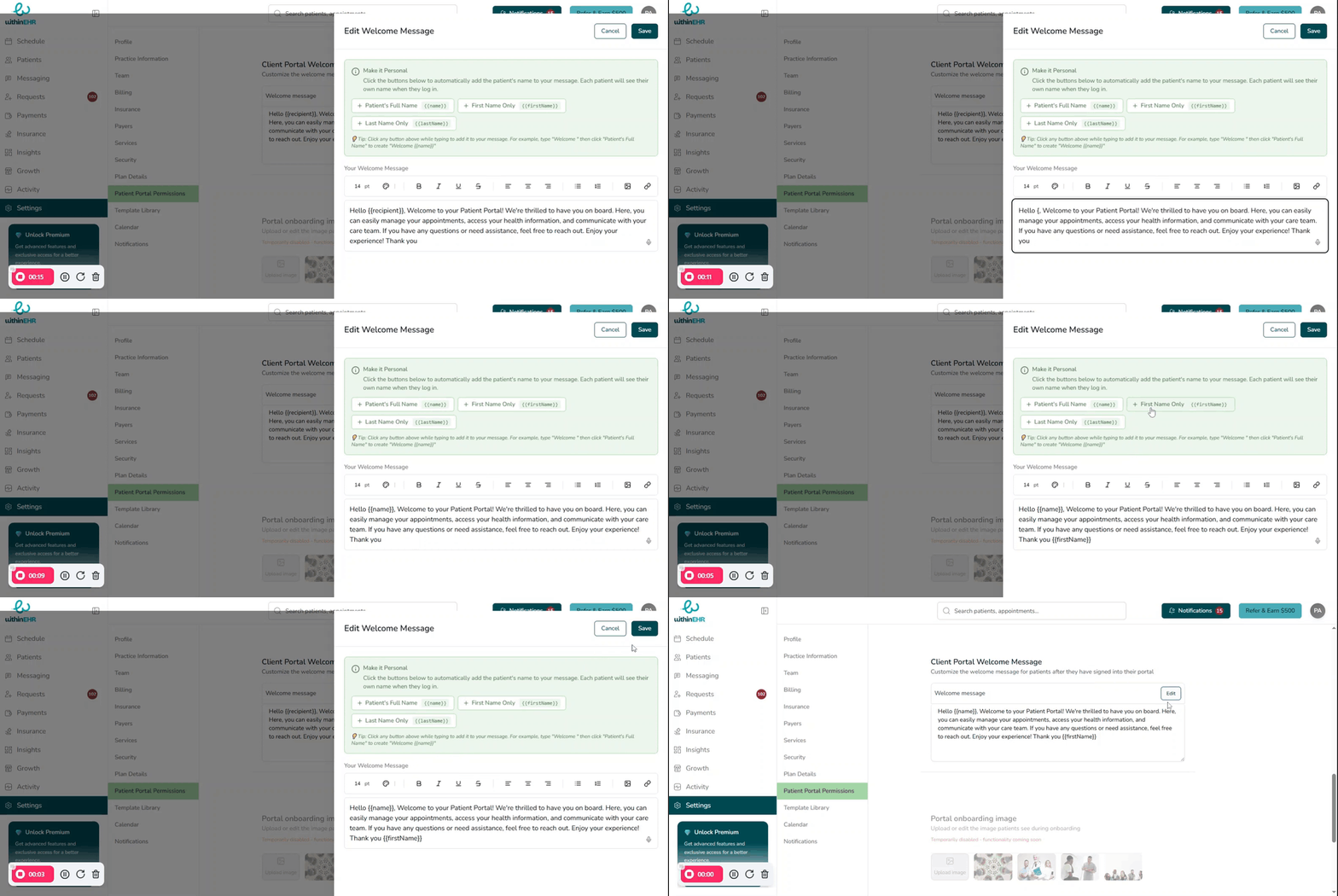
Macros are short pieces of code or specific text tags that act as placeholders in a standardized message template. When the system sends the message or displays the welcome screen to an individual client, it automatically replaces the macro with the specific, accurate data pulled directly from that client's profile in the EHR.
- Access Settings: Navigate to the "Patient Portal Permissions" within your EHR's administrative dashboard.
- Locate Field: Find the field labeled "Client Portal Welcome Message".
- Draft and Edit: Enter your new text. Keep it concise.
- Insert the Macro: Instead of manually typing "Client Name," click on the
{{client_full_name}}macro in the list, and the code will be inserted into your text. - Click "Save".