Secure messaging with WithinEHR
Understand the security features and HIPAA compliance of WithinEHR's messaging system. Using secure messaging is vital for maintaining client confidentiality and adhering to privacy regulations (like HIPAA, PCI, if applicable). It provides an encrypted channel for discussing sensitive details, eliminating the risk associated with unencrypted email or text.
- Send secure messages to your clients
- Go to messaging
- Use the search bar to find the patient you want to message
- Click on the patient name
- Type your message in the message box
- Click send
View recent messages
- Open the Messaging section.
- Select the Staff tab.
- Choose the staff member you want to message.
- Type your message and click Send.
- Open Messaging.
- Under the Patients tab, you’ll see your recent patient conversations.
- Click any conversation to view the full thread.
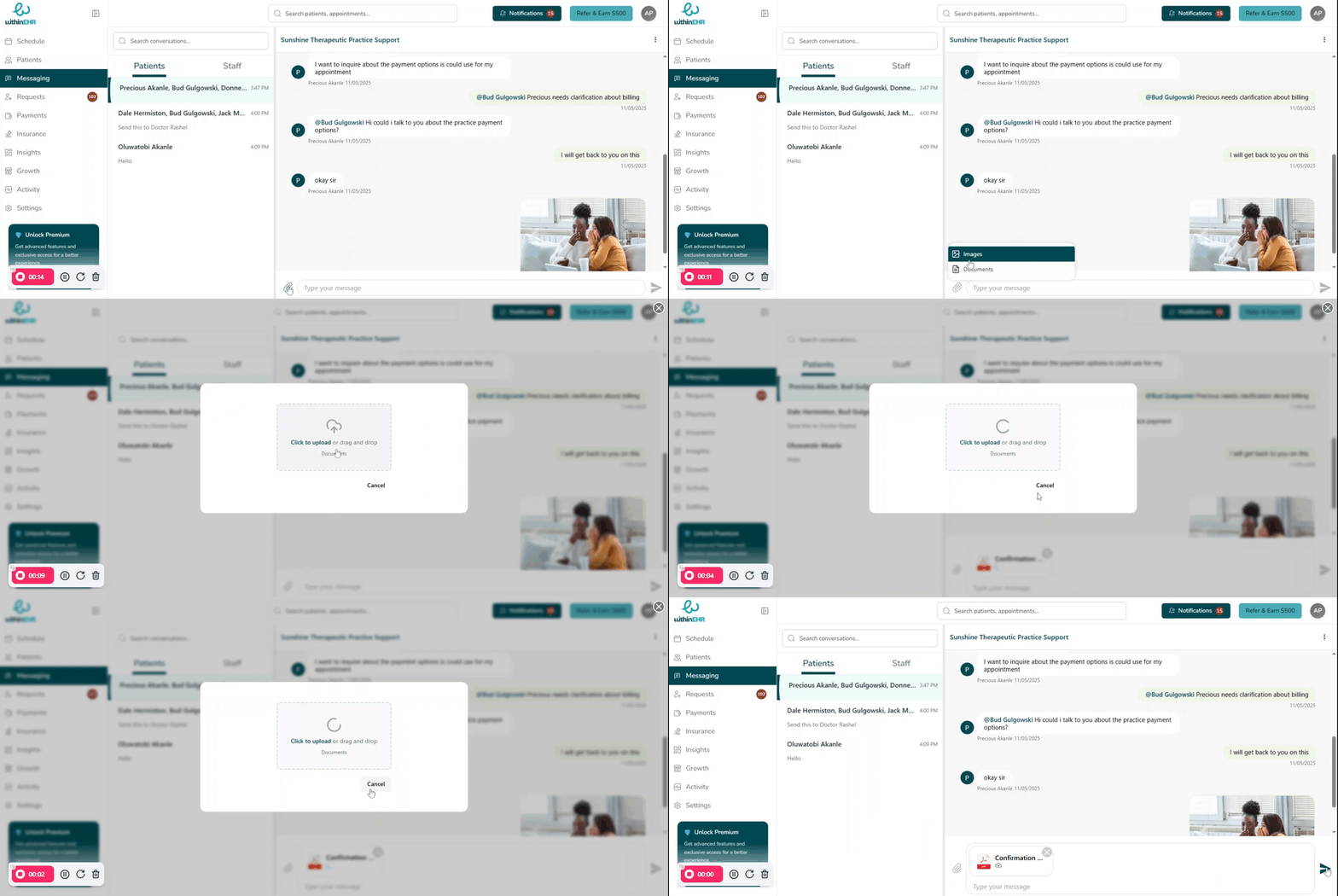
Attach files to a message
- In the chat, click the paperclip 📎 icon.
- Select an image or document from your device.
- Click Upload, or drag and drop the file into the upload box.
- Once attached, tap the paper-plane (jet) icon to send the message with the file.
Use emojis
Accessing client record from inbox
- Assigning team-member to a message
- Click the three-dot icon on the right side of the message.
- Select “Assign” from the menu.
- Choose the team you want to assign the message to.
- Select the medical personnel you want to add.
- Click “Apply” to save the assignment.