Appointments and Calendar Event Types
WithinEHR supports two types of calendar entries: appointments for client sessions and events for internal activities. Using both correctly keeps your schedule, documentation, and revenue reports in sync.
Creating a New Event
Events block time on the calendar for anything that is not a client session — staff meetings, admin time, training, or personal appointments. This keeps internal operations organized without cluttering your clinical schedule or affecting client records.
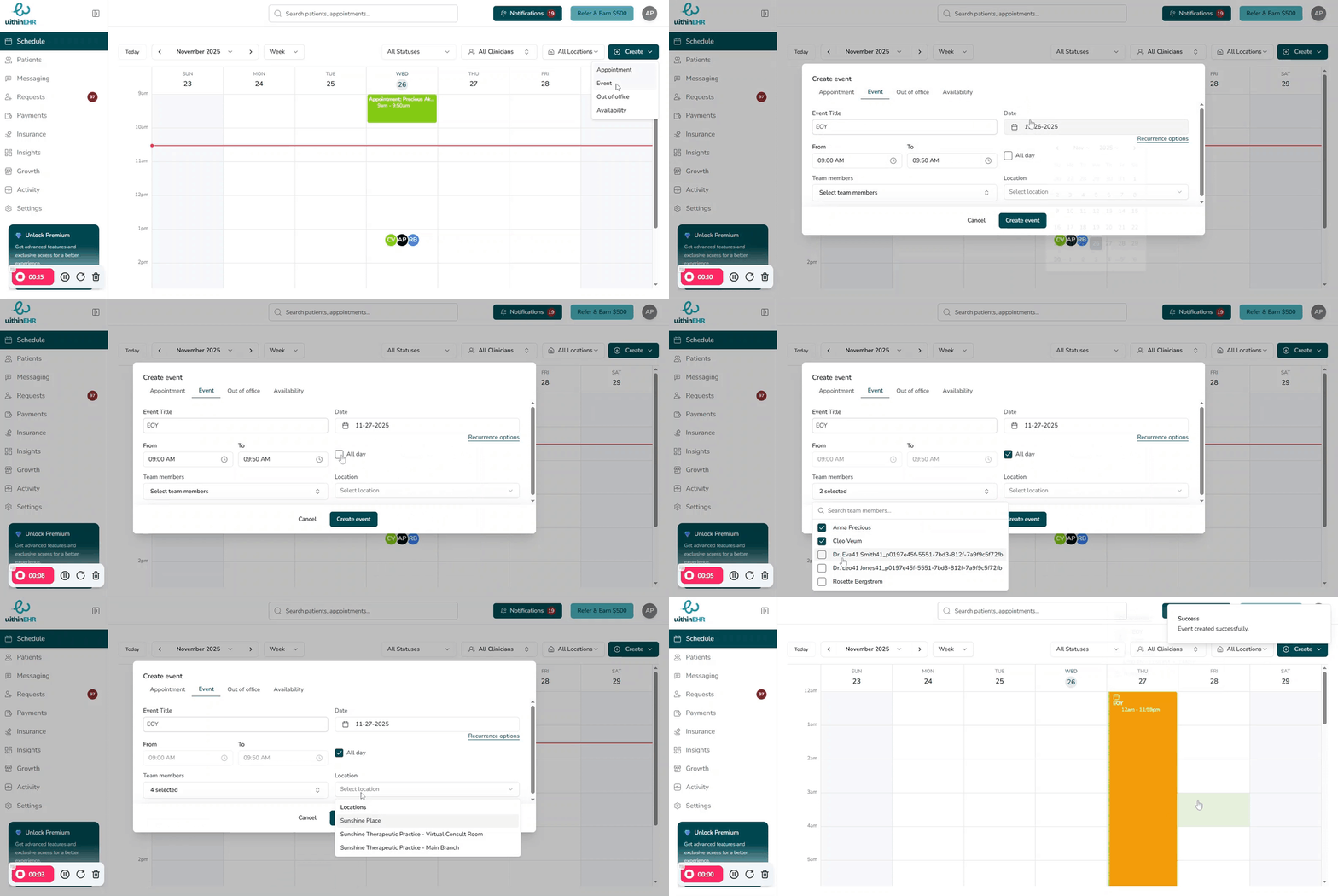
Steps to Create a New Event
- Go to the Schedule or Calendar tab.
- Click Create and choose Event, or click directly on an open time slot and select Event.
- Enter a clear title (e.g., "Team Meeting," "Admin Time," "Training").
- Set the start and end time, or check All Day if this blocks the entire day.
- Set a recurrence pattern if this happens regularly.
- Select the staff members who should be blocked by this event.
- Click Save Event to add it to the calendar.
Tips
- Use recurring events for regular admin blocks, supervision, or team huddles so those times stay protected without extra clicks.
- Give events clear, consistent names so staff can understand at a glance why a time slot is unavailable.
Creating an Appointment
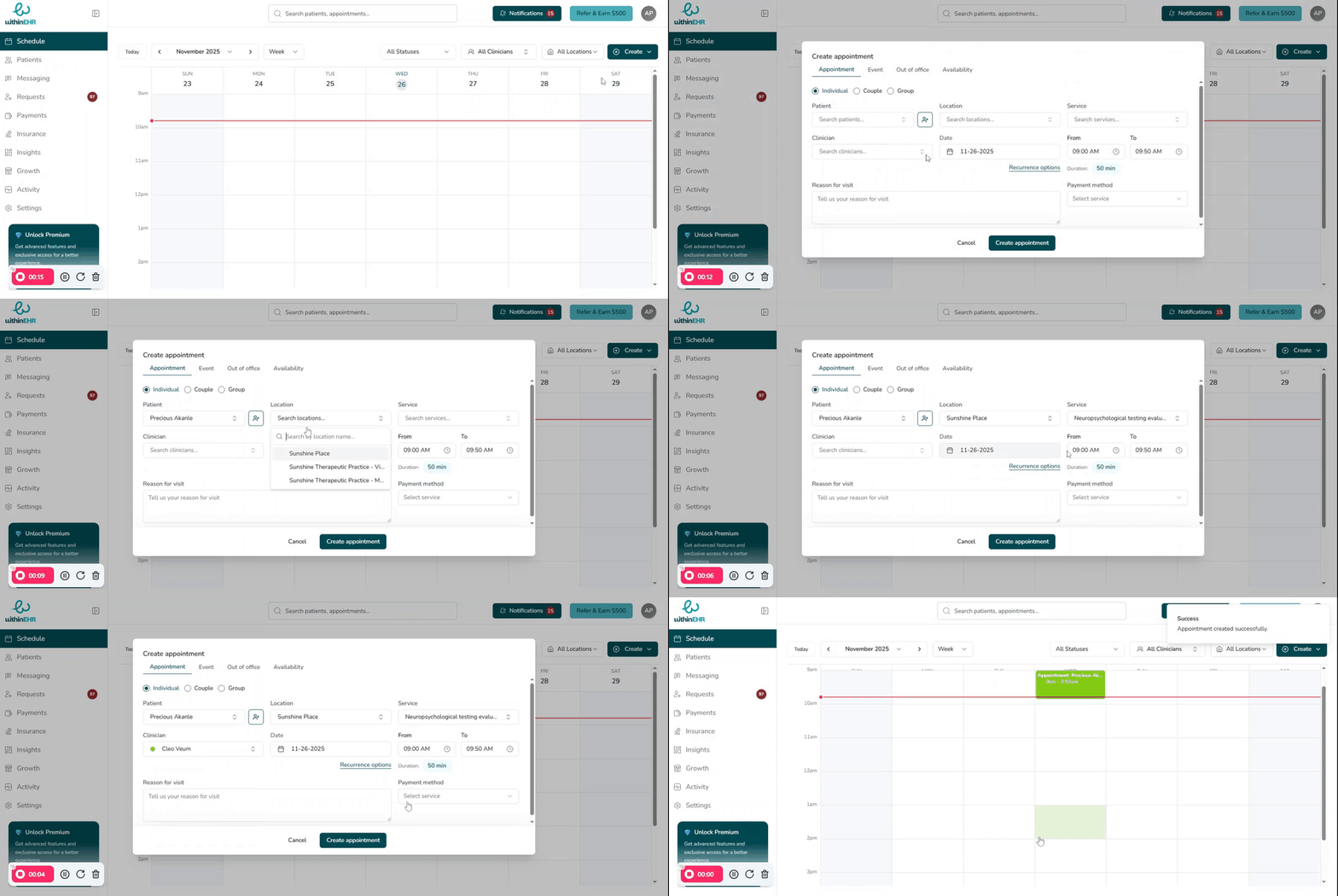
Each appointment ties together the client, service, time, and clinician — keeping your schedule, documentation, and revenue reports all in sync.
Steps to Create an Appointment
- Go to the Schedule or Calendar tab.
- Click Create and select Appointment, or click directly on an open time slot.
- Choose appointment type — Individual, Couple, or Group.
- Select client — search for and select the correct client. If new, use Add New Patient to create their profile first.
- Select service — choose the service (e.g., New Patient Intake or Follow-up Visit). This sets the default duration and billing configuration.
- Duration — review and adjust if needed.
- Location — confirm or select the visit location (In-office, Telehealth, or a specific clinic site).
- Assign clinician — assign the clinician who will see the client.
- Reason for visit — add a brief note for clinical context.
- Review — double-check all details before saving.
- Confirm — click Create Appointment or Save.
Tips
- Use consistent naming for services and reasons for visit so reports and analytics clearly show how different appointment types are used.
- Save common visit types as reusable services with preset durations and billing codes to speed up scheduling.