Customizing Calendar View
Customizing your calendar view helps you quickly switch between a big-picture overview of your practice and focused views for specific providers, services, or locations — so scheduling feels simple instead of overwhelming.
What You Can Customize
- Group your calendar by team, service, or location
- Color-code appointments by team or service
- View a specific team member's schedule
- Switch between day, week, and month views
Group Your Calendar by Team, Status, or Location
Use filters to focus your calendar on the people, services, or locations that matter in the moment.
- Go to the Schedule tab.
- Open your calendar filters (e.g., All Clinicians, All Locations, or All Statuses).
- To focus by team, choose one or more clinicians.
- To focus by status, select the appointment status category you want to see.
- To focus by location, pick one or more locations.
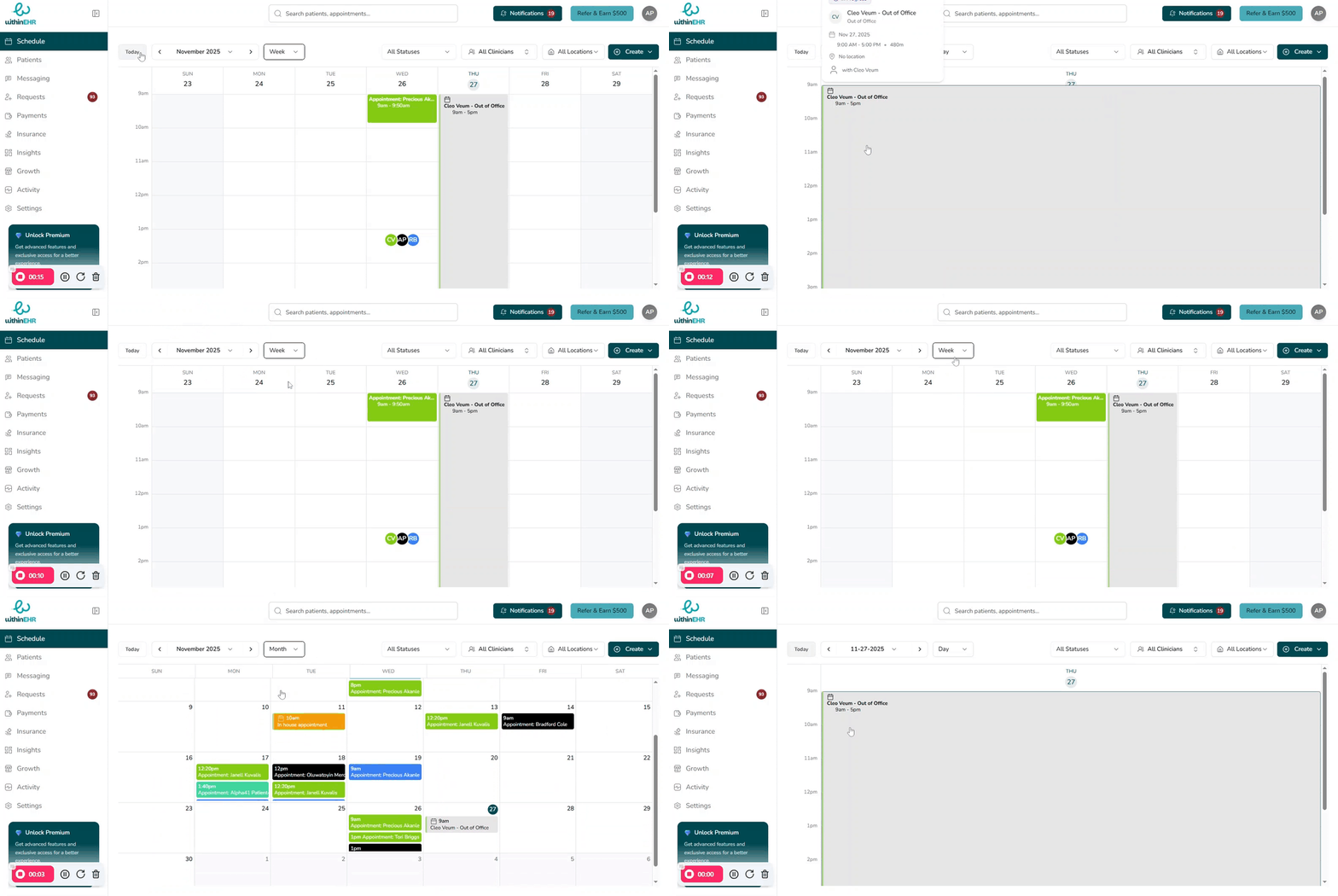
View a Specific Team Member's Schedule
- Go to Schedule or Calendar.
- Open the All Team Members / All Clinicians dropdown.
- Deselect the global option, then select the team member you want to view.
- The calendar updates to show only that person's appointments.
Color-Code Appointments
Color-coding makes it easy to scan your calendar and understand what is happening without opening each appointment.
- From the Calendar, open the Color or Color by menu.
- Choose whether colors represent Status, Service, or Clinician/Team.
- Assign clear, distinct colors to key services or teams.
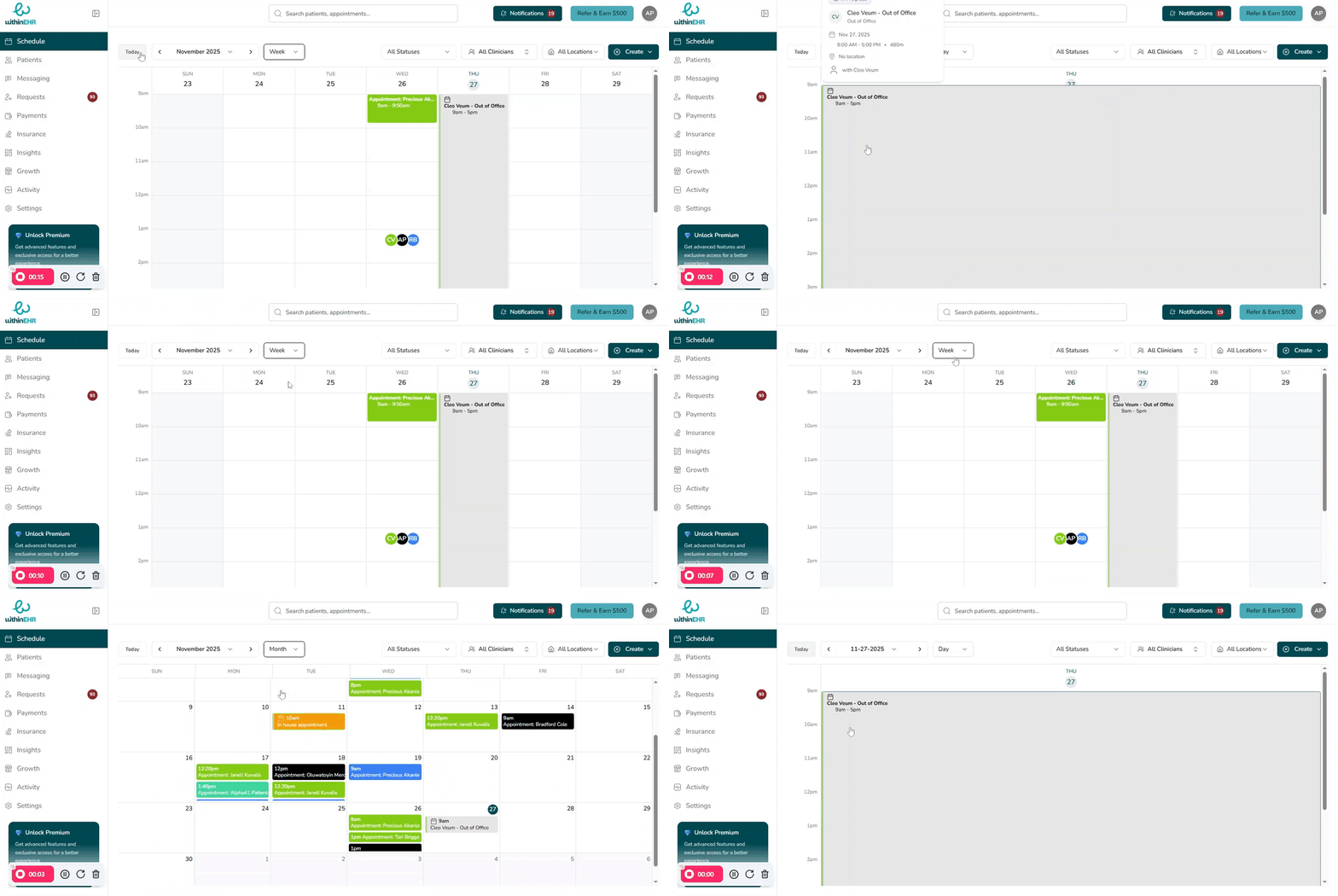
Switch Between Day, Week, and Month Views
- Day — manage today's schedule and spot time-of-day conflicts.
- Week — see seven days side by side for rescheduling and staffing.
- Month — plan vacations, campaigns, and long-term booking patterns.
Use the Day, Week, and Month buttons at the top of the calendar to switch views.
Tips
- Combine filters (e.g., a specific clinician plus a specific location) for a highly focused view of your resources.
- Pair color-coding with the Week view to quickly spot gaps, group similar services, and build a smoother day for each clinician.