Client Portal

The client portal is your clients' secure, private gateway to manage their healthcare interactions with your practice. Creating an account gives them instant access to their health information, secure messaging, appointment scheduling, and payment management — all in one place.
How Clients Create a Portal Account
- The client receives an invitation via email after their first interaction with your practice, or they can access the link through your practice website.
- They are directed to a page asking if they are a New Patient or Existing Patient. They select New Patient.
- They fill in basic information — First Name, Last Name, Date of Birth, Email.
- A verification link is sent to their registered email address. Clicking the link redirects them to complete registration.
- They complete the following sections: Medical History, Appointment Scheduling, Payment.
- They click Complete Registration.
- They are directed to their patient portal dashboard.
How Clients Book an Appointment Through the Portal
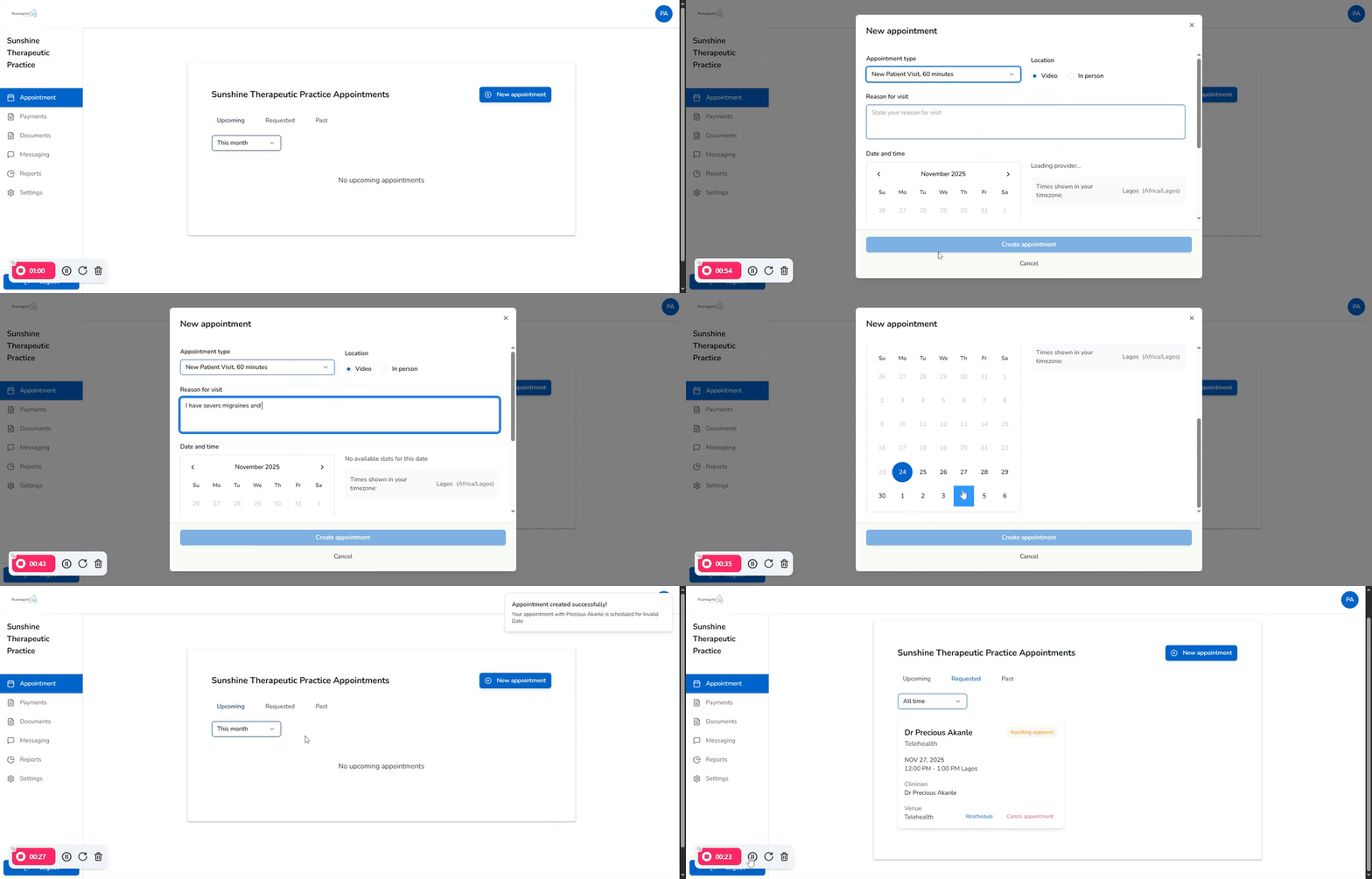
- Log into the patient portal and click the Appointments or Schedule a Visit tab.
- Choose the Type of Service needed (e.g., Annual Physical, Follow-up, Sick Visit).
- Confirm the Location (In-Office or Telehealth).
- Enter the Reason for Visit.
- Select the Date and Time that works best.
- Click Create Appointment.