Client Portal Settings
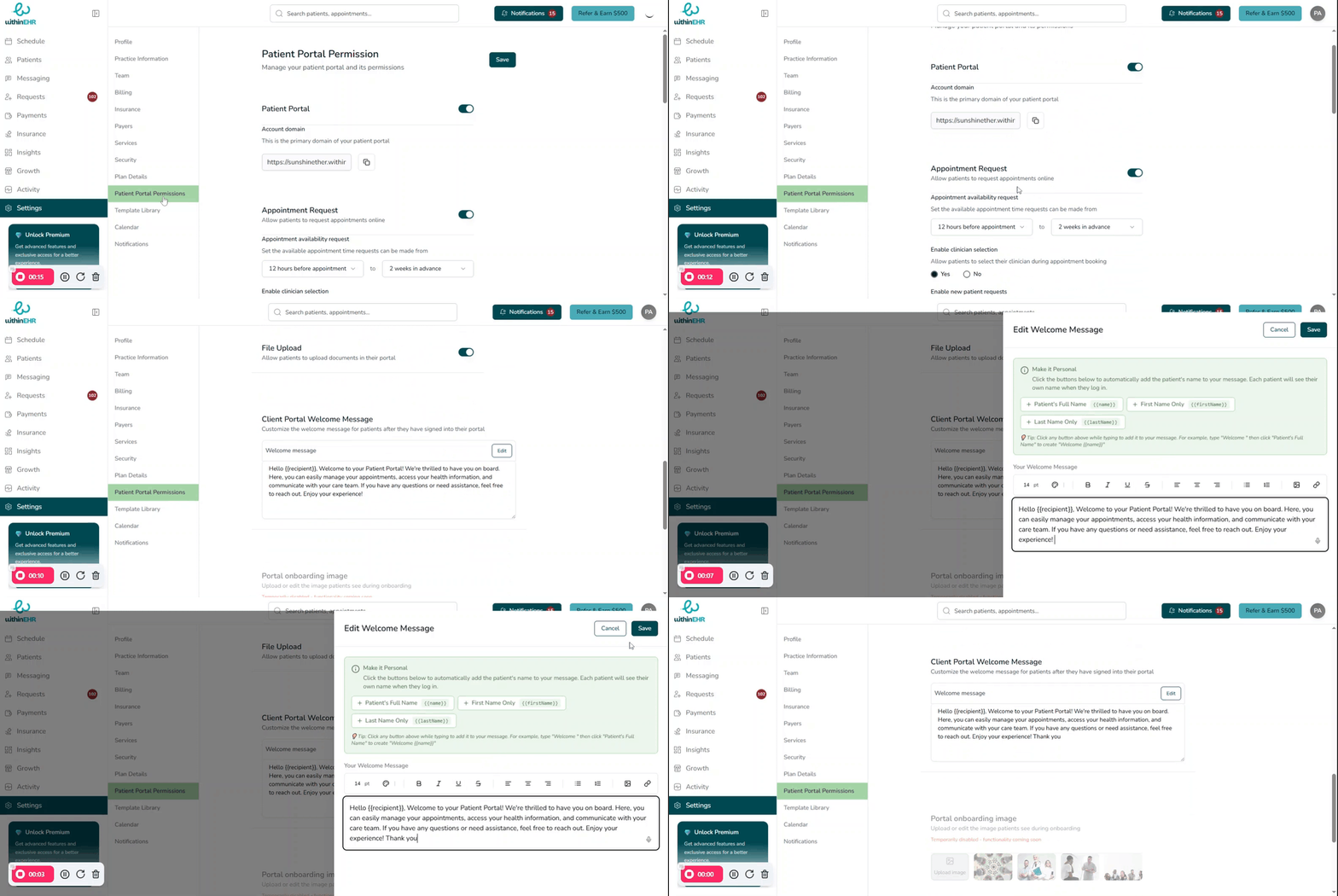
Client portal settings let you control what clients see and can do when they log into their portal — from the welcome message to document access and appointment permissions.
Update the Portal Greeting Message
The greeting message is the first text clients see after logging in. Keep it concise, welcoming, and informative.
- Navigate to Patient Portal Permissions in the Settings tab.
- Find the Client Portal Welcome Message field.
- Enter your new message.
- Click Save — the new message will appear immediately for all active clients on their next login.
Using Macros in Your Greeting
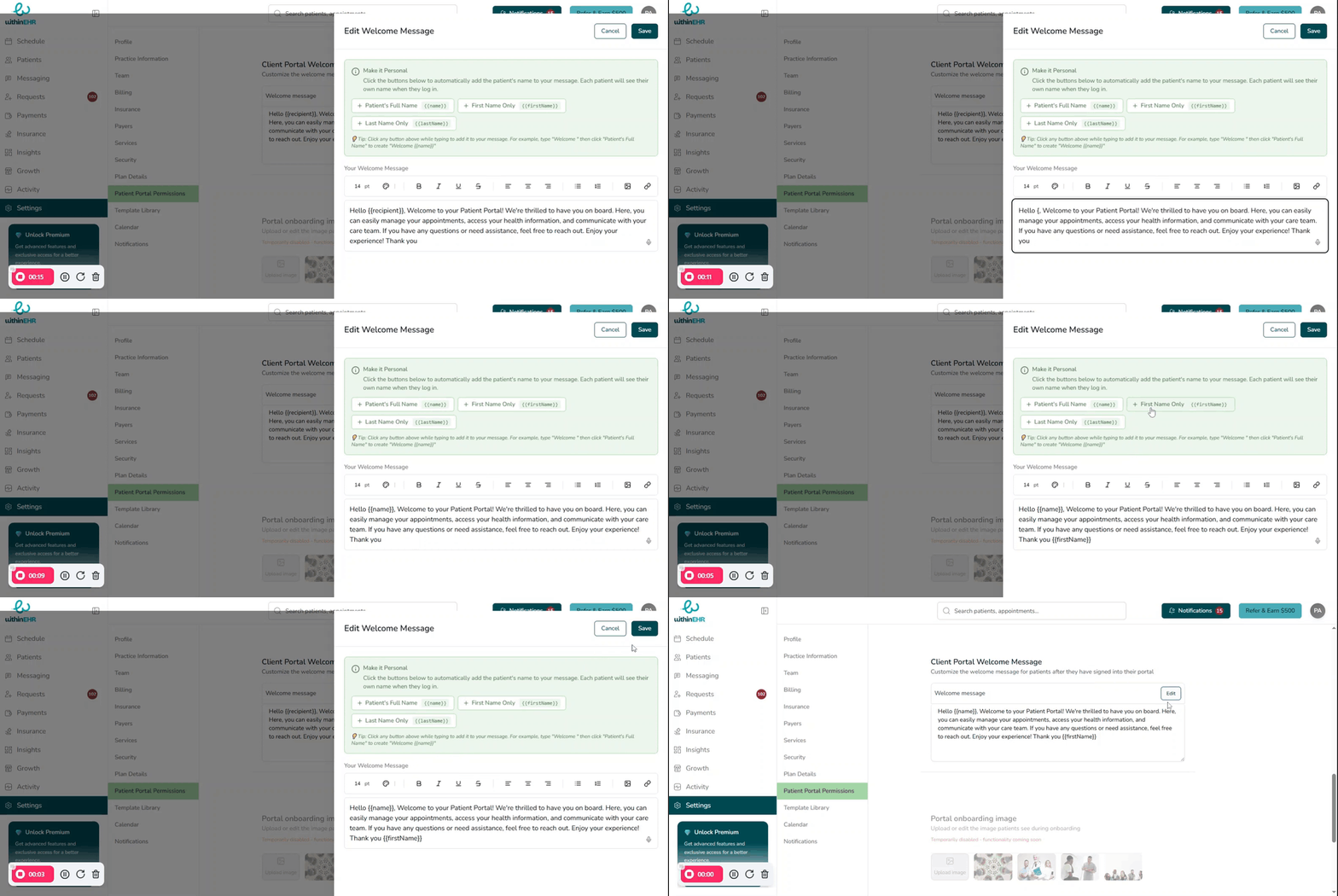
Macros are placeholders that automatically populate with client-specific data when the message is displayed.
Example: Instead of typing "Hello [Client Name]," insert the macro {{client_full_name}} — WithinEHR will replace it with the client's actual name automatically.
How to Insert a Macro
- Navigate to Patient Portal Permissions in the Settings tab.
- Find the Client Portal Welcome Message field.
- Click on the macro you want to insert (e.g.,
{{client_full_name}}). - The macro code will be inserted into your message.
- Click Save.