Secure Messaging with WithinEHR
Secure messaging is vital for maintaining client confidentiality and adhering to privacy regulations including HIPAA. WithinEHR provides an encrypted channel for discussing sensitive clinical details — eliminating the risk associated with unencrypted email or SMS.
Send a Secure Message to a Client
- Go to Messaging on the navigation pane.
- Use the search bar to find the patient you want to message.
- Click on the patient's name to open the conversation.
- Type your message in the message box.
- Click Send.
View Recent Messages
- Open Messaging.
- Under the Patients tab, your recent patient conversations are listed.
- Click any conversation to view the full thread.
Message Staff Members
- Open the Messaging section.
- Select the Staff tab.
- Choose the staff member you want to message.
- Type your message and click Send.
Attach Files to a Message
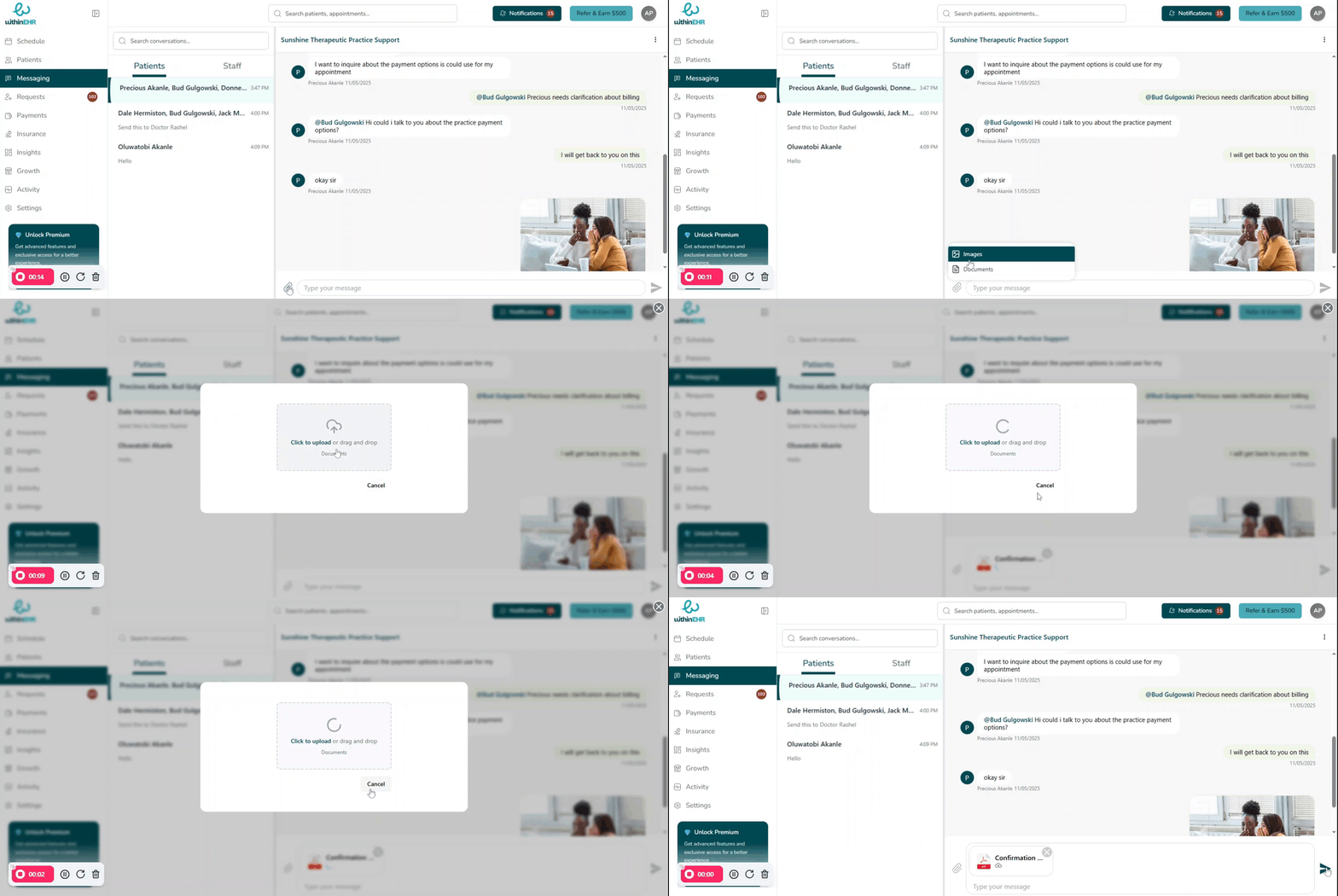
- In the chat, click the paperclip icon.
- Select an image or document from your device.
- Click Upload, or drag and drop the file into the upload box.
- Click the send icon to send the message with the attachment.
Use Emojis
- In a direct message, click the emoji icon.
- Choose any emoji you want to include.